Group Management
The FGates added to the IoT Cloud Platform vary in function, geography, industrial site, etc. The user manages the FGates by adding them to different "FGate Groups".
1. FGate Group Management
Click the icon in the [Auxiliary Function] area and click "Add Group". In the pop-up [Add Group] dialog box, fill in the name of the group (maximum length of 40 characters), click "OK", you can create a new group.
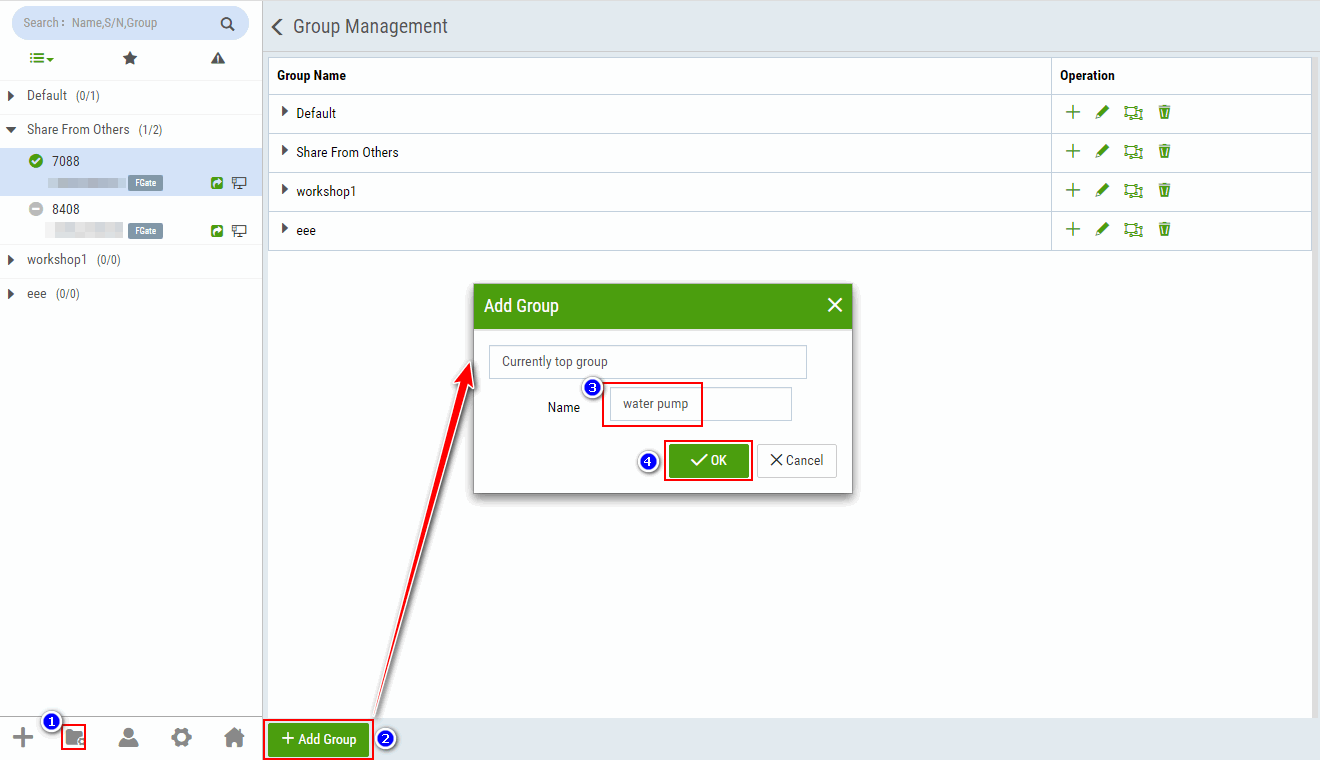
 :Add sub-group for the current group.
 : Modify the group name of current group.
 : Change the upper level group of the current group.
 Delete the current group and its sub-groups. When there is FGate existing in the current group or sub-group, the group cannot be deleted.
2. Change FGate Group
1.Right-click FGate, click "Change Group".
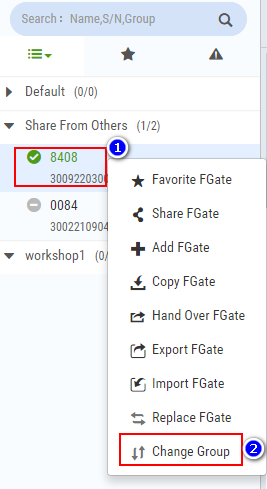
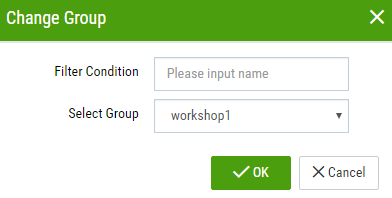
2.Select a group in the pop-up [Change Group] dialog box, and click "OK" to move FGate to the selected group .