Import F5 Series PLC Address Tag
When the FGate is connected to a FLEXEM F5 series PLC via serial or Ethernet port, the address tags of the FLEXEM F5 series PLC can be imported directly.
1.Export FLEXEM F5 series PLC address tag files.
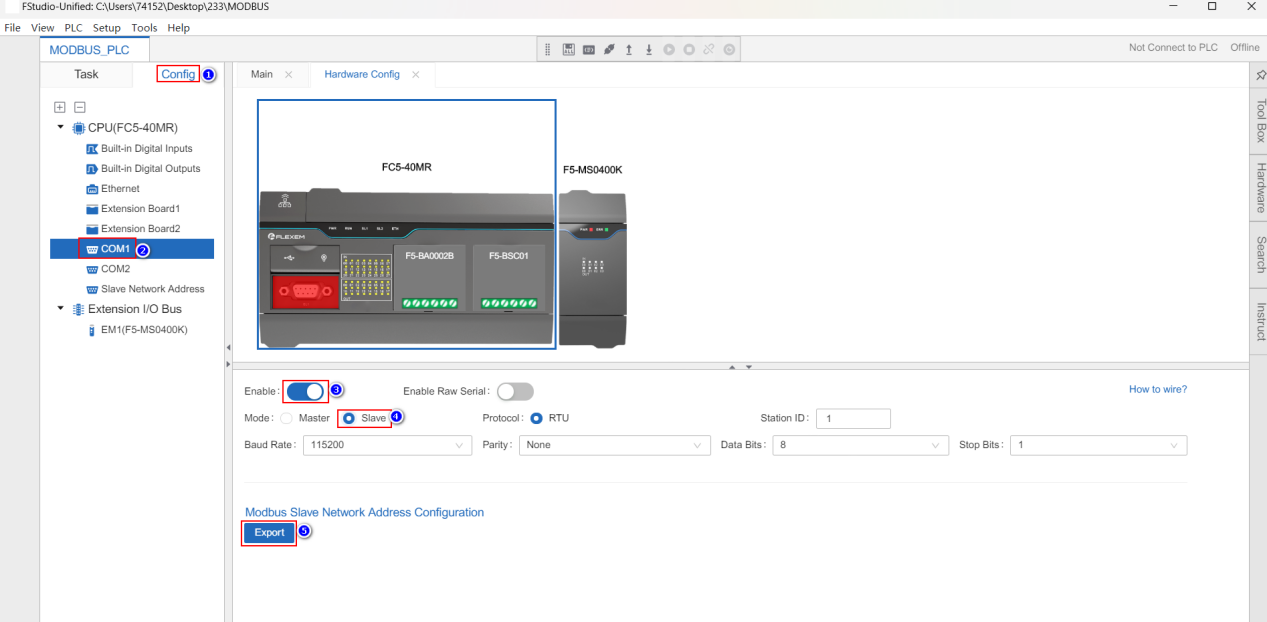
If FGate connects to FLEXEM F5 series PLC through serial port, the operation method is as follows: Run FStudio Unified software, open F5 series PLC project, click "Config", click "COM1", turn on "Enable", select "Slave" mode, and then click "Export" to export Modbus slave network address configuration of FLEXEM F5 series PLC.
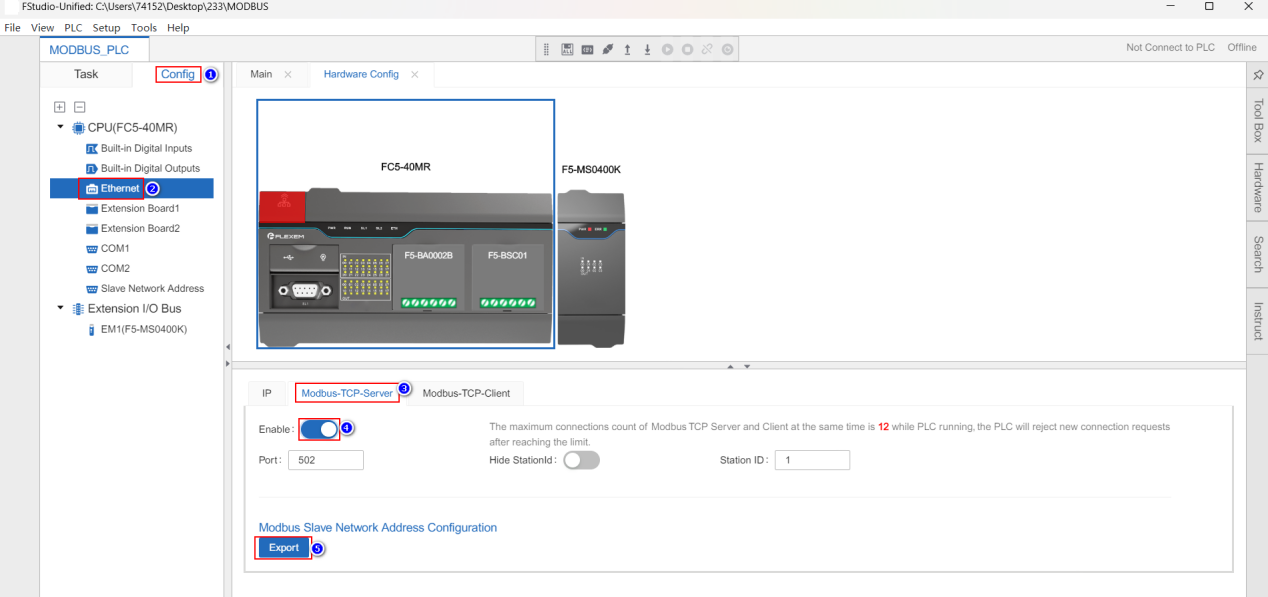
If FGate connects to FLEXEM F5 series PLC through the Ethernet port, the operation method is as follows: Run FStudio Unified software, open the F5 series PLC project, click "Config", click "Ethernet", select the [Modbus-TCP-Server] tab, turn on the "Enable", and then click "Export", then the Modbus slave network address configuration information of FLEXEM F5 series PLC can be exported.
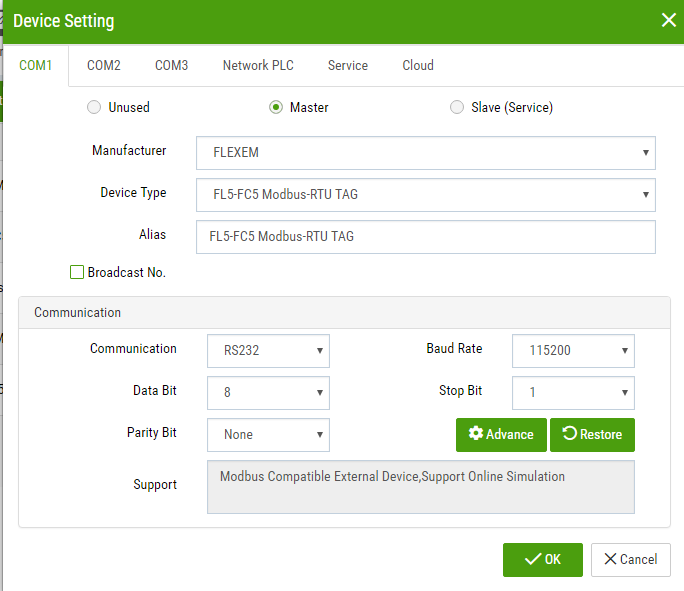
2.Log in to FGateManager, select FGate, click [Remote] > [Remote Devices], click "Device Setting", add FLEXEM F5 series PLC device in the pop-up [Device Setting] dialog box, click "OK".
3.Select FGate, click [Address Tag], click "Export/Import", and click "Import F5 PLC File".
4.In the pop up [Import F5 PLC File] dialog box , configure the relevant information and click "OK".
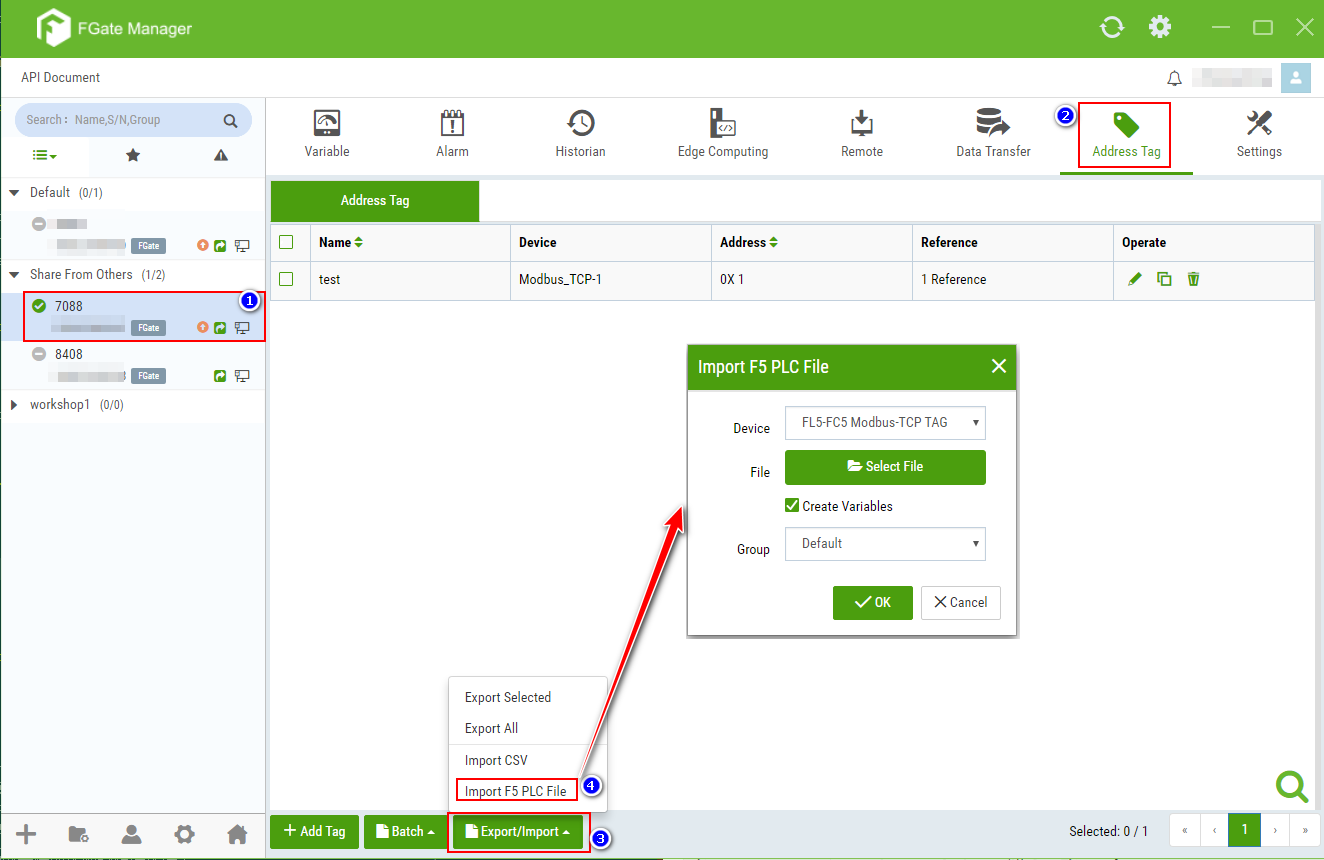
Please refer to the table below for detailed configuration method.
| Parameter | Description |
|---|---|
| Device | Select a FLEXEM F5 Series PLC device connected to FGate via serial or Ethernet port. |
| File | Click "Select File" to select the FLEXEM F5 PLC address tag file and import it. |
| Create Variables | Checked by default, i.e. when importing FLEXEM F5 series PLC address tags,a variable will be created for each address tag imported. |
| Group | Add the variables generated by the F5 tag to the specified group. |