Add FGate
Adding a new FGate to the IoT cloud platform enables remote management of the FGate. Users can add FGate manually in FGateManager (by adding FGate serial number and password), or scan the QR code on the label using the mobile app "FGate Assistant", which allows FGate to be added by only one user (actual owner) at the same time, i.e., there is only one owner of FGate.
Add a Single FGate
1.Click the icon in the bottom left corner of the FGateManager interface, click "Add ".
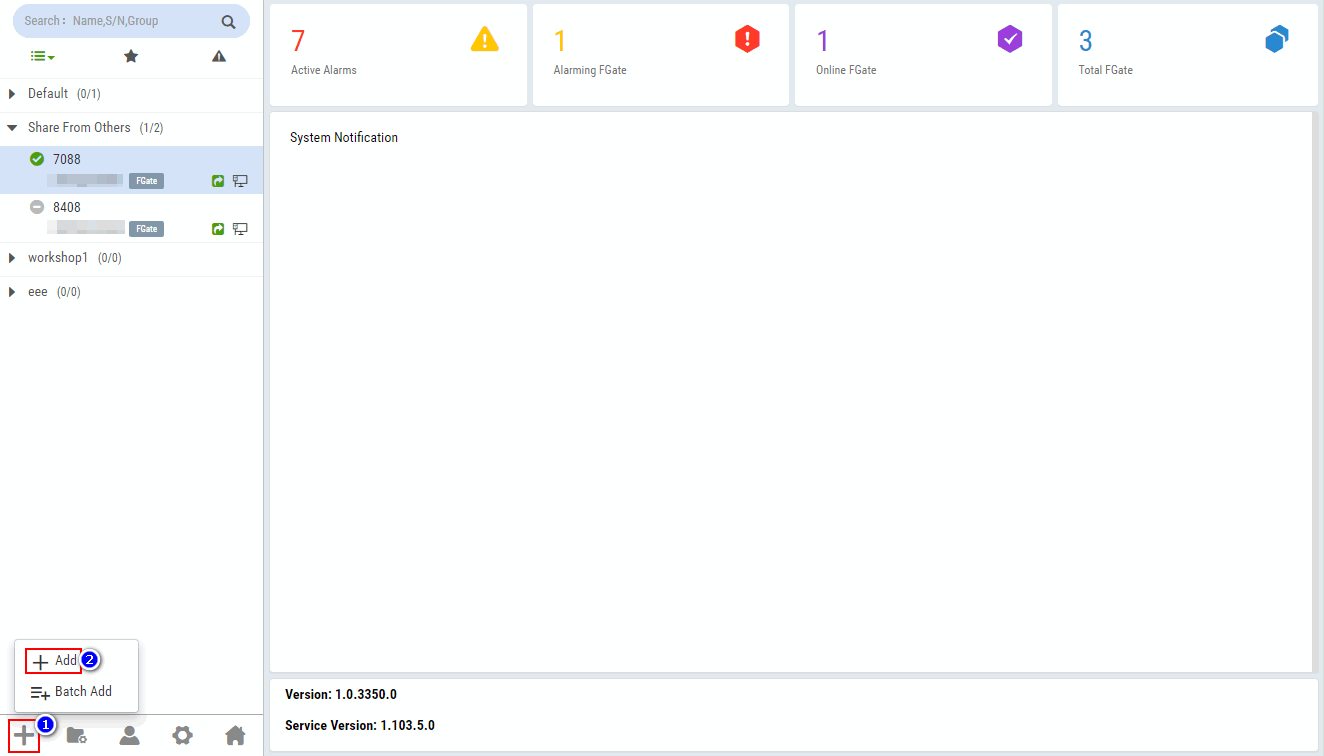
2.in the pop up [Add FGate] dialog box, fill in the serial number, password and alias of the FGate, and specify the FGate group, and click "OK" to manually add the FGate to the IoT cloud platform.
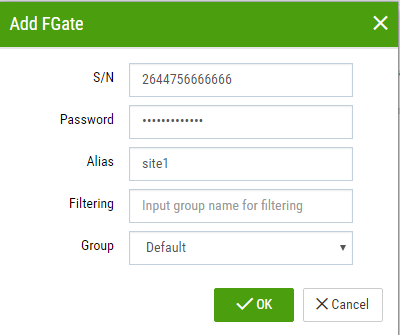
For deatailed configuration method, please refer to import FBox.
Add FGates in Batches
To improve the efficiency of adding FGates, FGateManager provides the function of adding FGatees in batches. Users can import all the FGates added in the CSV file to the IoT cloud platform and record their import results.
1.Click theicon in the bottom left corner of the FGateManager interface, click "Batch Add", click "Template" in the pop-up [Batch Add Device] dialog box to download the template file batch- box-temp.csv.
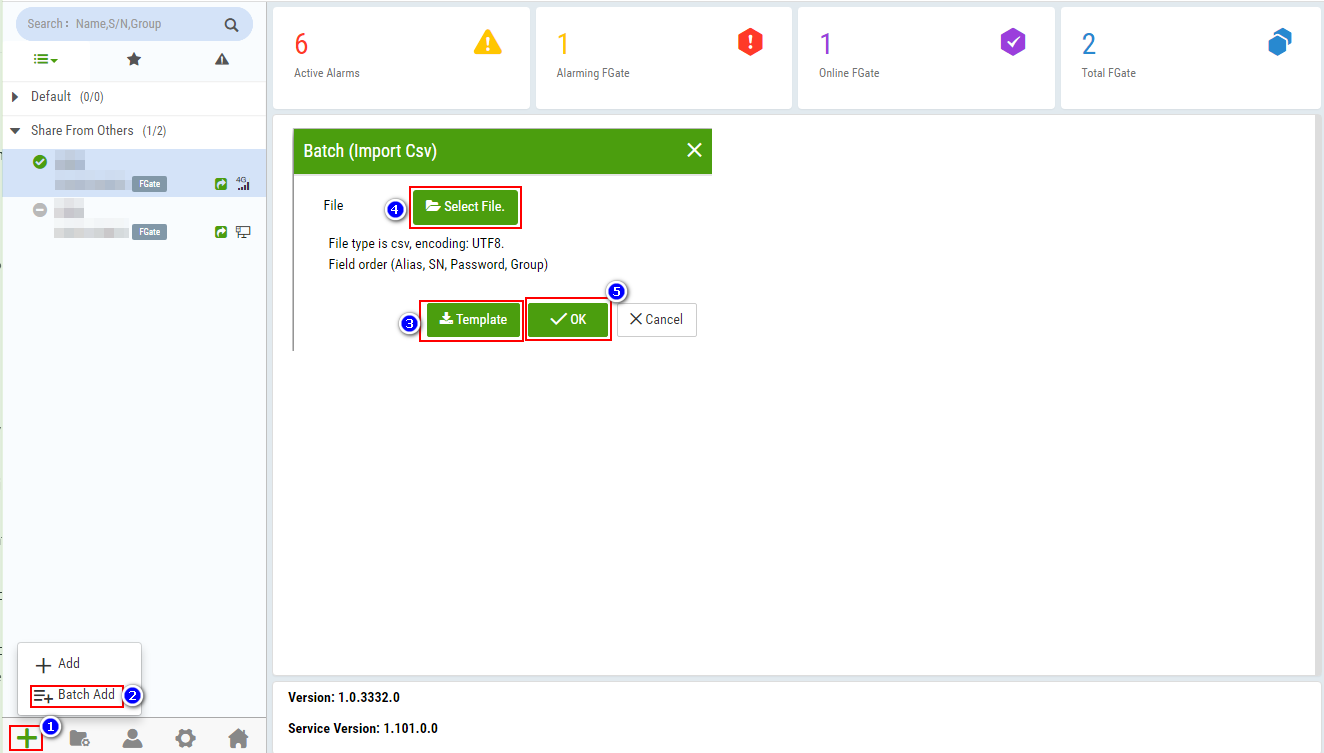
2.Open batch-box-temp.csv, fill in the FGate information, delete table header line and note information, save the file as CSV format.
The description of batch-box-temp.csv field is as follows:

3.Click "Select File", select the batch-box- temp.csv with added FGates, click "OK" to import FGates in batches.
4.Click "OK" in the pop-up [System Prompt] dialog box, jump to [Global Setting] > [Batch Results] to view the operation results.
Replace FGate
Upgrading the networking method in industrial fields leads to the need to replace the original FGate with a new FGate, for example, the original FGate connects to the IoT cloud platform through Ethernet, and after upgrading, the networking method is Wifi or 4G. At this time, the original FGate that is networked by Ethernet is no longer suitable for the networking requirements in industrial sites, and it needs to be upgraded and replaced with the FGate-Wifi or the FGate-4G. In addition, if the performance of FGate decreases due to aging or other reasons, or if the FGate is scrapped, it is also necessary to replace the original FGate with a new FGate. Users can add a new FGate to replace the original FGate through the function of "Replace FGate" and use the configuration of the original FGate without configuring a new FGate.
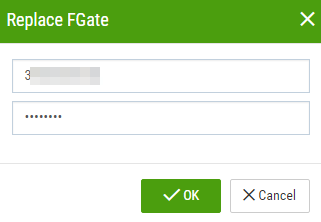
1.Right-click FGate, click "Replace FGate".
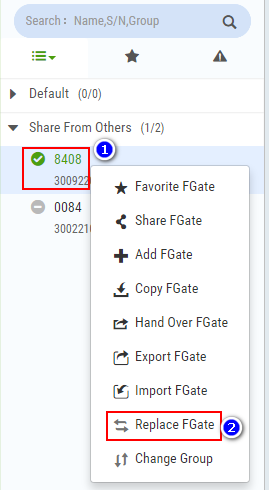
2.In the pop-up [Replace FGate] dialog box, fill in the serial number and password of the new FGate, and click "OK" to replace FGate.